
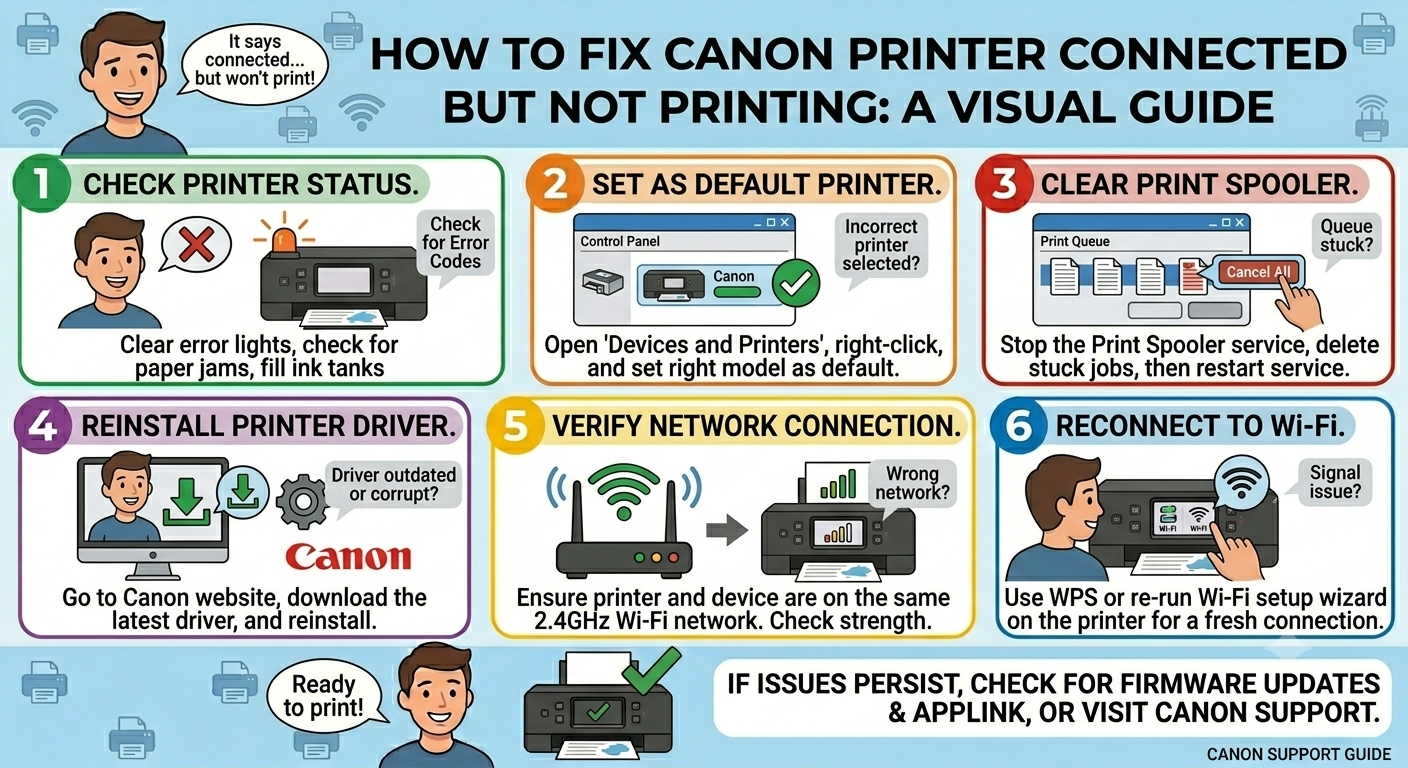
Your screen says “Ready,” Wi-Fi is connected, and you hit print. Nothing happens. No error, no noise.
First thing to check: is the Canon actually set as your default printer? A Windows update may have quietly switched it to Microsoft Print to PDF or some other placeholder. Go to Devices and Printers and confirm.
If that’s fine, open the Services app, find Print Spooler, and restart it. This clears any jobs stuck in the queue. Sometimes a single large file — a big photo or a long PDF — jams everything behind it. You can also open the print queue directly from Devices and Printers, cancel all pending jobs, then restart the spooler.
Still nothing? Check the port. In Printer Properties, under the Ports tab, see what your Canon is connected to. If it says WSD, change it to a Standard TCP/IP port. WSD ports are flaky after a router reboot because they don’t follow the printer if its IP changes. A TCP/IP port using the printer’s actual IP address is more stable. To find the current IP, print a network configuration page from the printer’s menu.
One more thing to check in that same Devices and Printers area: right-click the Canon, open “See what’s printing,” then click the Printer menu at the top. If “Use Printer Offline” is checked, uncheck it. Windows turns this on for no clear reason and it stops all jobs without any indication of why.
If you’ve gone through all of that and it’s still not printing, do a clean driver install from IJ.start.canon/setup. Download the full package for your specific model — not the generic one Windows offers automatically. The generic driver skips some Canon-specific communication routines and can drop jobs silently.
Read More About : – Canon Printer Blue Light Flashing – Easy Fix Guide
Before you reinstall anything, though, open the printer cover and look for paper scraps. A fragment too small to trigger the jam sensor can halt the printer entirely and give you nothing — no error code, no blinking light. Just silence. It takes ten seconds to check. For More details visit ij Canon help


0 Comments