
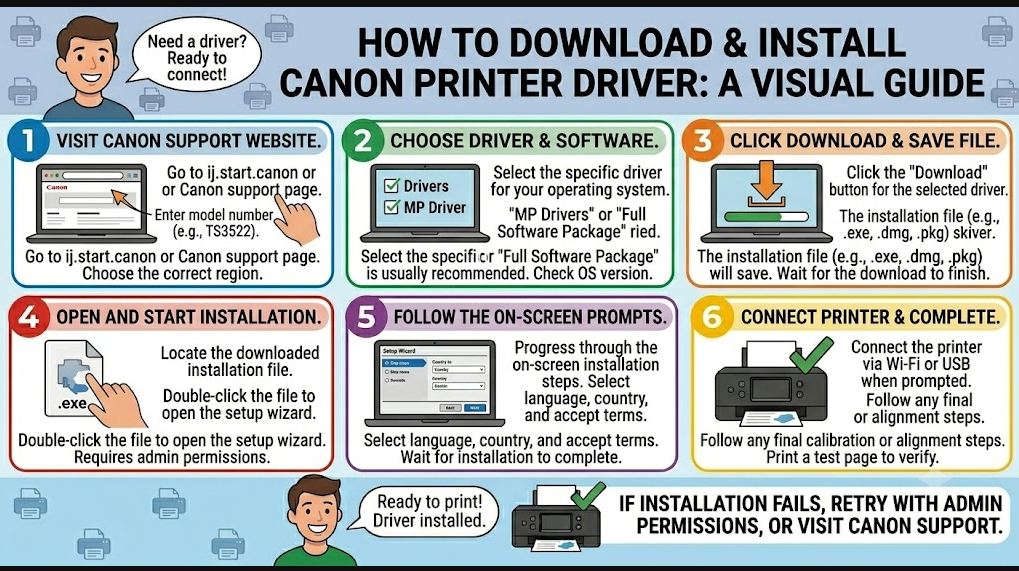
A missing or corrupted driver is the most common reason a printer stops being recognized. The fix is straightforward: find the right driver for your exact model and do a clean install.
Find your model number and download the driver
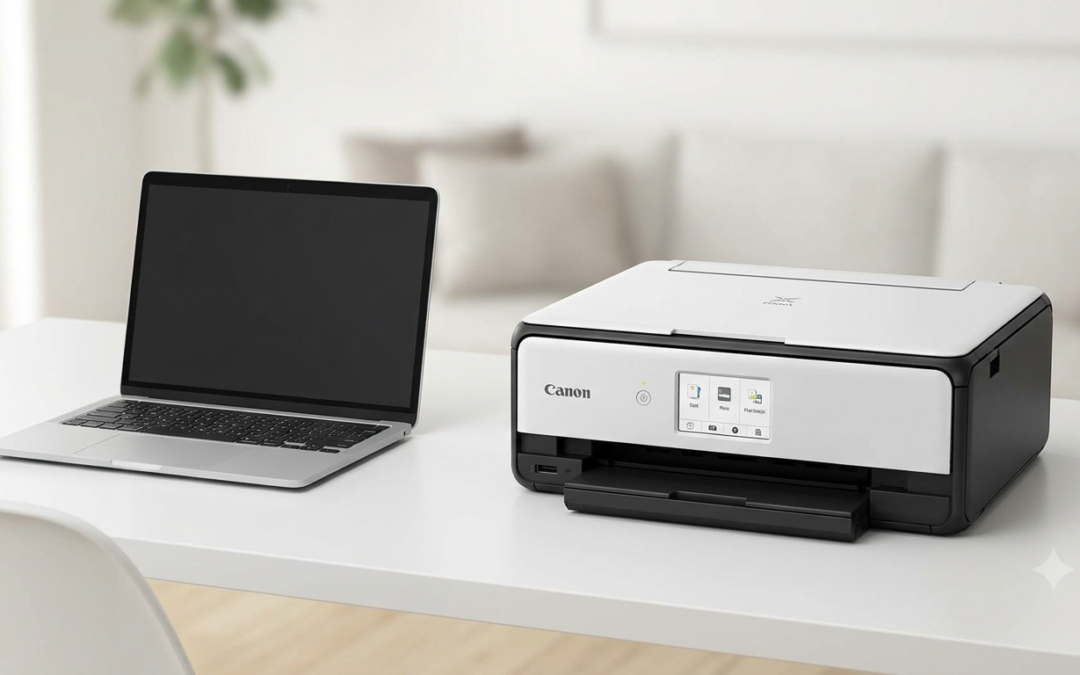
Look at the front of the printer. It’ll say something like PIXMA MG3620 or MAXIFY MB5420. Write it down.
Go to IJ.start.canon/setup, enter the model number, and confirm your operating system — the site sometimes guesses wrong between Mac and PC. Download the full driver package and save it somewhere easy to find.
Before running the installer, restart your computer. This isn’t strictly required, but it clears any processes that might interfere with the installation.
Run the installer. When Windows asks for administrator permission, click yes — it’s just confirming you have the authority to install software.
Wireless setup
If you’re setting up over Wi-Fi, find the “Network” or “Wi-Fi” button on the printer’s physical panel and hold it until the light flashes. This puts the printer into pairing mode. Then follow the setup wizard at IJ.start.canon/connect — it scans for the printer and walks through the connection steps.
Read More About : – Troubleshooting Common Issues with Canon Printer App
Confirm it’s working
When the installation finishes, print a test page. Don’t skip this. It tells you immediately whether the driver installed correctly and whether the printer is actually communicating with your computer.
If the test page comes out streaky, that’s normal for a new or recently idle printer. Open the maintenance tab in the printer software and run a cleaning cycle. For More details visit ij Canon help


0 Comments