
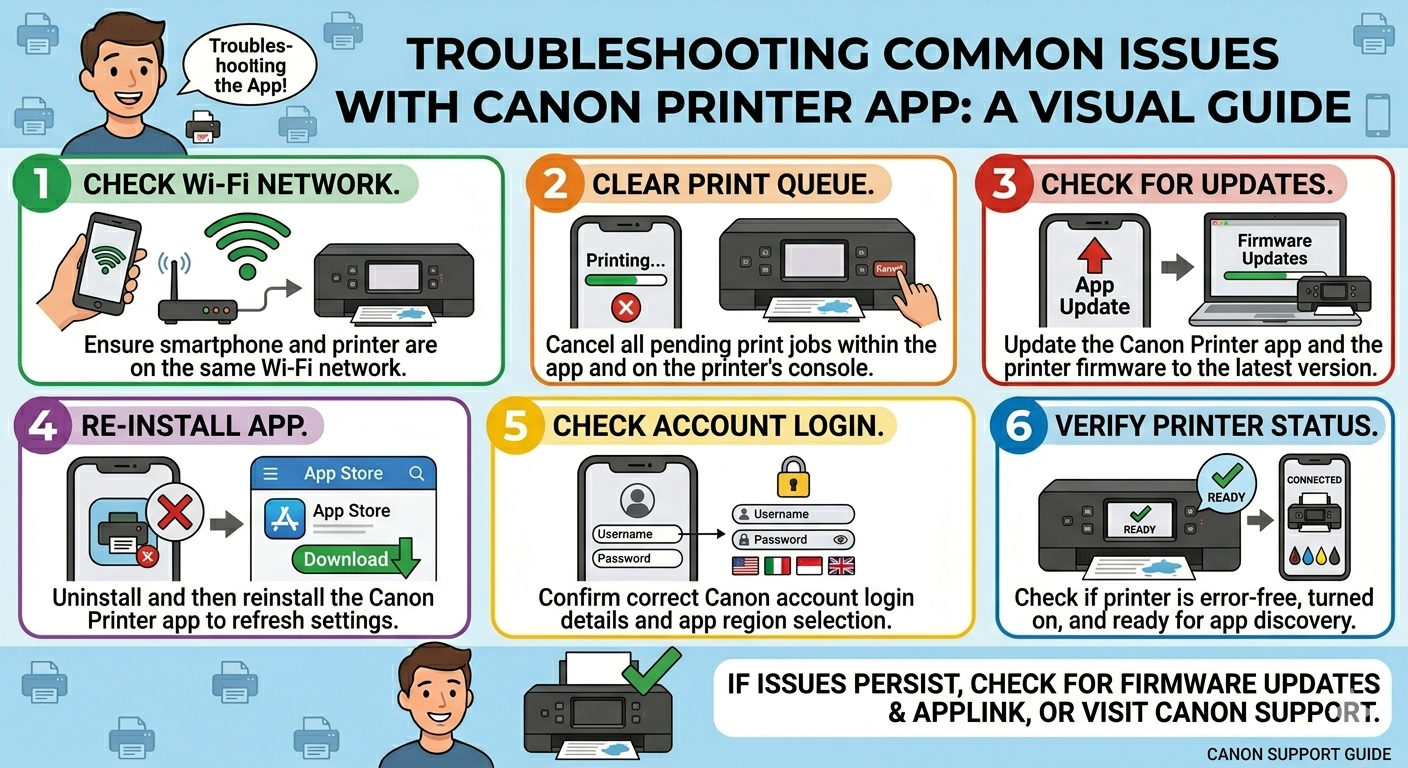
Your screen says “Ready.” The Wi-Fi is connected. You hit print and nothing happens.
This is almost always one of three things: a stuck print queue, a wrong port setting, or Windows quietly switching your default printer to something else. Check the default printer first — a recent Windows update may have reset it to a PDF viewer without telling you. It sounds too simple to matter, but it gets missed.
Clear the print queue
Open the Services app on your PC, find “Print Spooler,” and restart it. This flushes any stuck jobs. If one large file is jammed in the queue (a big photo, a long PDF), delete it manually first: go to Control Panel → Devices and Printers, right-click your Canon, and open the print queue. Cancel everything in there, then restart the spooler service.
Check your port
Go to Devices and Printers, right-click your Canon, and open Printer Properties. Under the Ports tab, look at what’s selected. If it says “WSD,” switch it to a Standard TCP/IP port. WSD ports lose track of the printer after IP changes. A TCP/IP port pointed at a static IP is more reliable.
While you’re at it, verify the printer’s IP hasn’t changed. Routers reassign addresses on reboot. If your printer’s IP shifted, the port is pointing at nothing. Check the printer’s network settings page (usually printable from the printer itself) and compare it to what’s in the port settings.
Check the “Use Printer Offline” box
In Devices and Printers, right-click your Canon and look for “See what’s printing.” In that window, click the Printer menu at the top. If “Use Printer Offline” is checked, uncheck it. Windows enables this silently and it stops all jobs cold.
Reinstall the driver
If none of the above works, the driver is probably the problem. Go to IJ.start.canon/setup, download the full driver package for your specific model, and do a clean install. The generic drivers Windows installs automatically don’t include all the Canon-specific communication code and will occasionally drop jobs without an error message.
Read More About : – How to Fix Canon Printer Connected But Not Printing Issue
Physical check
Before reinstalling anything, open the printer cover and look for paper fragments. A small scrap — too small to trigger the paper jam sensor — can halt the printer with no error code. Just silence. Worth ruling out before spending time on software.
If you’ve done all of this and it still won’t print, try a full power cycle: shut down the router, printer, and PC. Wait a minute. Bring them back up in that order. For More details visit ij Canon help


0 Comments