
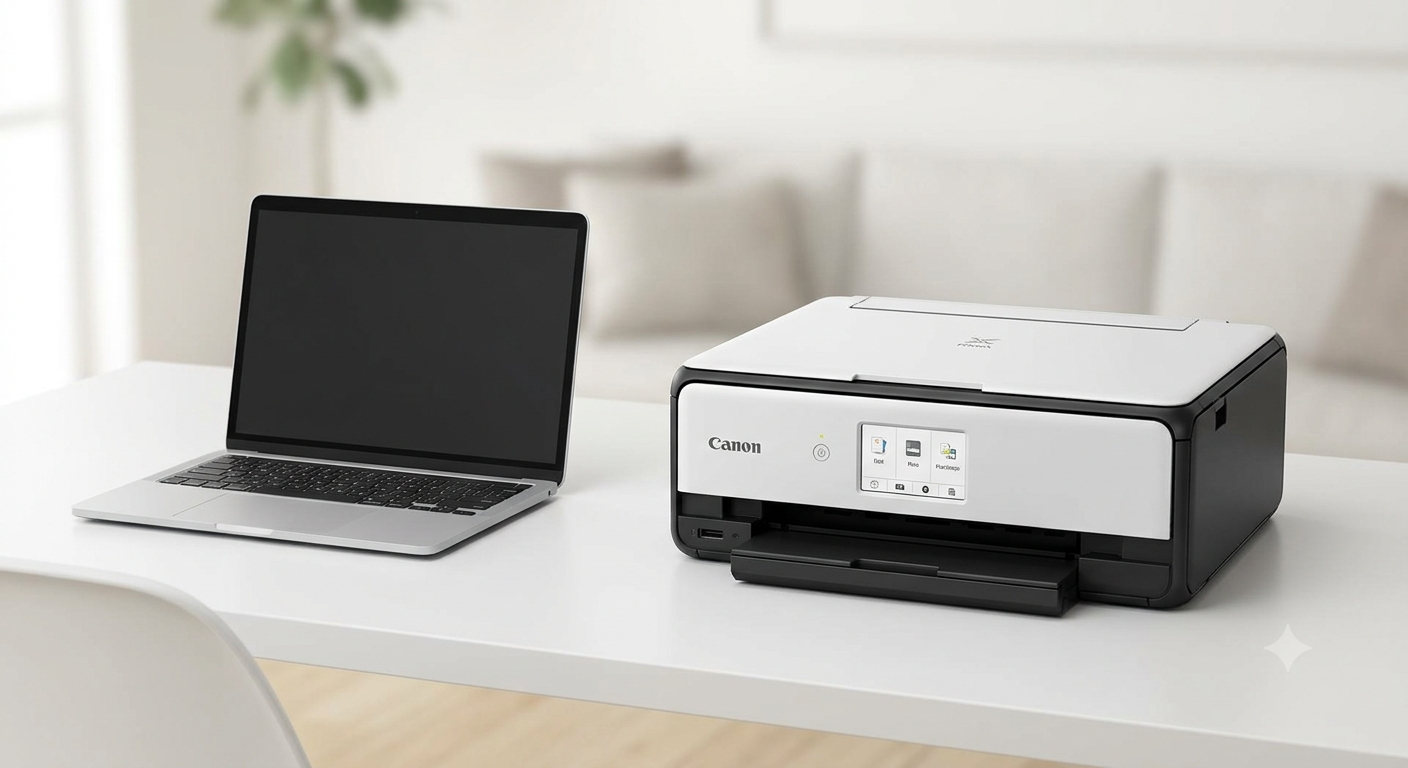
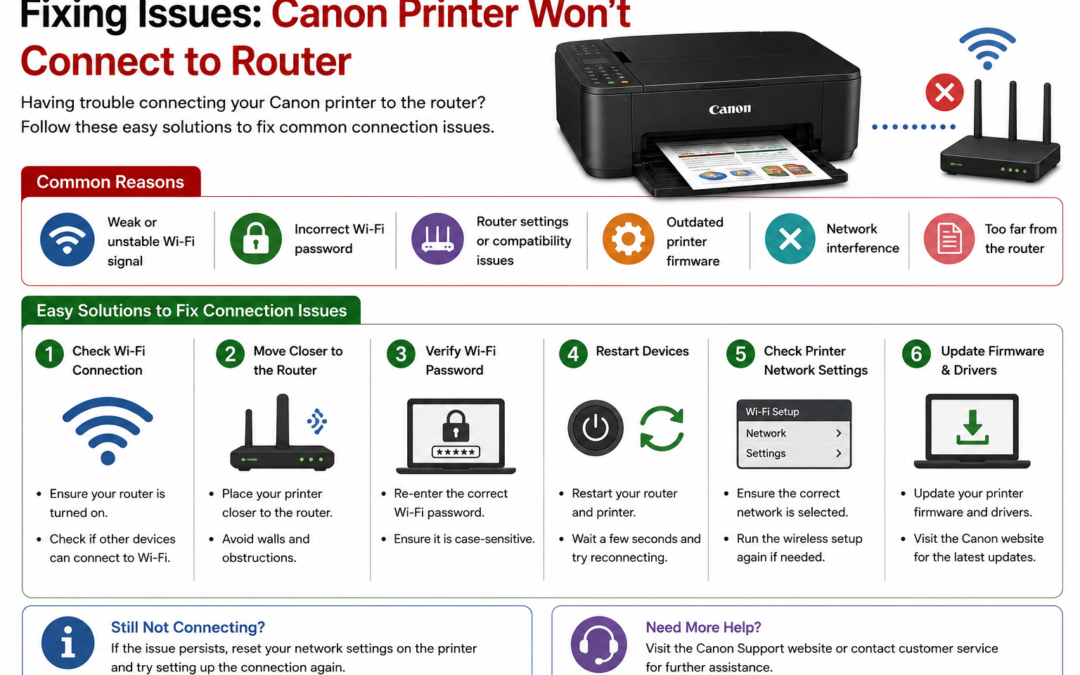
If you recently upgraded to Windows 11, changed your internet provider, or bought a new router, you might find that your Canon printer refuses to connect to your network or continually shows an “Offline” status.
Quick Check (Try This First):
-
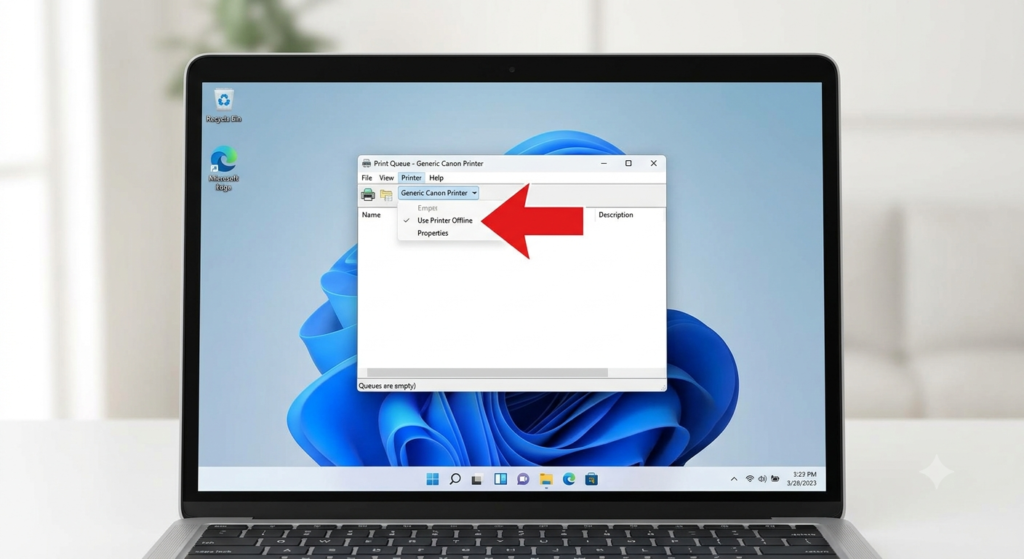
Is “Use Printer Offline” checked? Go to Settings > Bluetooth & devices > Printers & scanners > [Your Canon Printer] > Open print queue > Printer menu and uncheck “Use Printer Offline”.
-
Are you on a 5GHz network? Many Canon printers only support 2.4GHz Wi-Fi. Ensure your PC and printer are on the same 2.4GHz band.
-
Did the IP address change? If your router restarted, it may have assigned a new IP address to the printer, breaking the connection to your PC.
If those quick checks didn’t solve the problem, follow this step-by-step guide to get your Canon printer communicating with Windows 11 again.
1. The 60-Second Quick Fixes (Try These First)
Before diving into IP addresses and Windows services, try a hard reset of your network hardware. Network devices hold onto residual power and cached memory, which can cause communication errors (like Canon Error E36: Connection Timeout).
Power Cycle the Printer and Router
-
Turn off your Canon printer using the power button, then unplug it from the wall.
-
Unplug your Wi-Fi router from its power source.
-
Wait a full 60 seconds. This allows all residual power to drain.
-
Plug the router back in and wait 2-3 minutes for the network to fully boot up and broadcast its signal.
-
Plug the printer back in, turn it on, and wait for the Wi-Fi indicator light to stop flashing.
Check the Wi-Fi Band (2.4GHz vs. 5GHz)
Modern routers use “Smart Connect” or “Band Steering,” which combines 2.4GHz and 5GHz networks under one single Wi-Fi name. While your Windows 11 laptop can seamlessly connect to 5GHz, most consumer Canon printers (especially older PIXMA models) lack 5GHz hardware.
If your router forces the printer onto 5GHz, the connection will fail. You may need to log into your router’s admin panel and temporarily separate the 2.4GHz and 5GHz networks to force the printer onto the 2.4GHz band.
2. Disable “Use Printer Offline” in Windows 11 Settings
This is the most common reason a perfectly healthy printer won’t print on Windows 11. If the connection drops even for a moment, Windows may default the printer to “Offline Mode” and leave it there permanently.
How to disable offline mode:
-
Click the Start button and open Settings (the gear icon).
-
Navigate to Bluetooth & devices on the left sidebar, then click Printers & scanners.
-
Click on your specific Canon printer from the list.
-
Click the Open print queue button.
-
In the new window that appears, click the Printer menu tab at the top left.
-
Look down the list for Use Printer Offline. If it has a checkmark next to it, click it once to remove the checkmark.
(If you also see “Pause Printing” checked, uncheck that as well).
3. Clear Stuck Print Jobs and Restart the Print Spooler
The Windows Print Spooler is the software service that manages all print jobs sent to the printer. If an old print job gets corrupted, it jams the spooler, blocking any new network communication and making the printer appear offline.
How to Restart the Print Spooler Service:
-
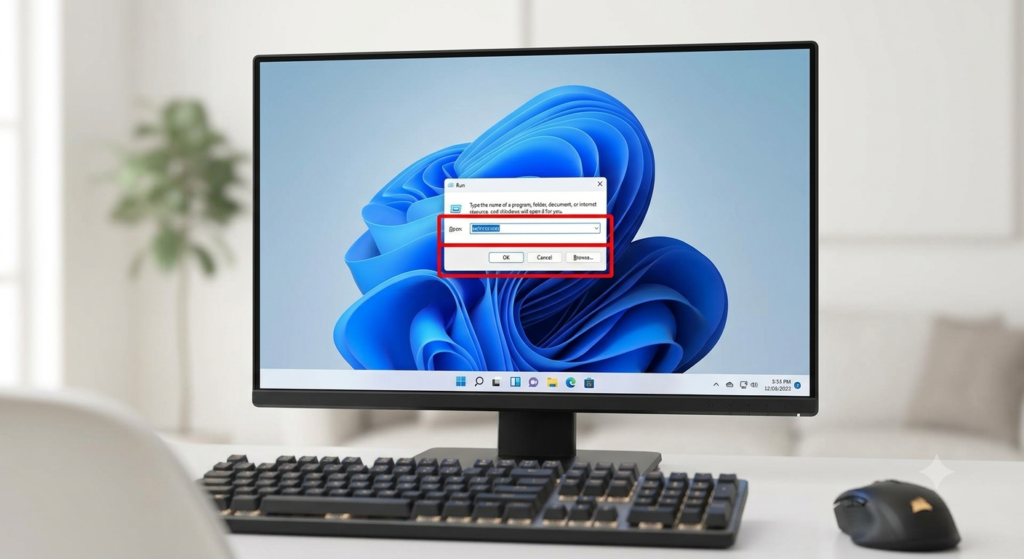
Press the Windows Key + R on your keyboard to open the Run dialog box.
-
Type
services.mscand press Enter. -
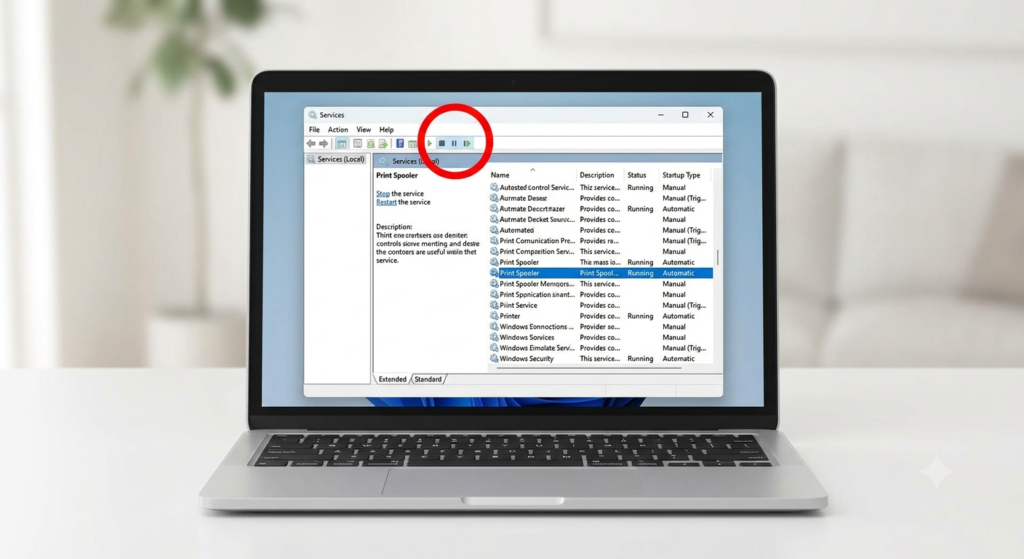
Scroll down the alphabetical list until you find Print Spooler.
-
Right-click on Print Spooler and select Restart (if Restart is grayed out, click Start).
-
Wait a few seconds for the service to reboot.
4. Re-Establish the Printer’s Wi-Fi Connection
If the Wi-Fi light on your printer is off or flashing continuously, the printer itself has lost the connection to your router, regardless of what Windows 11 says.
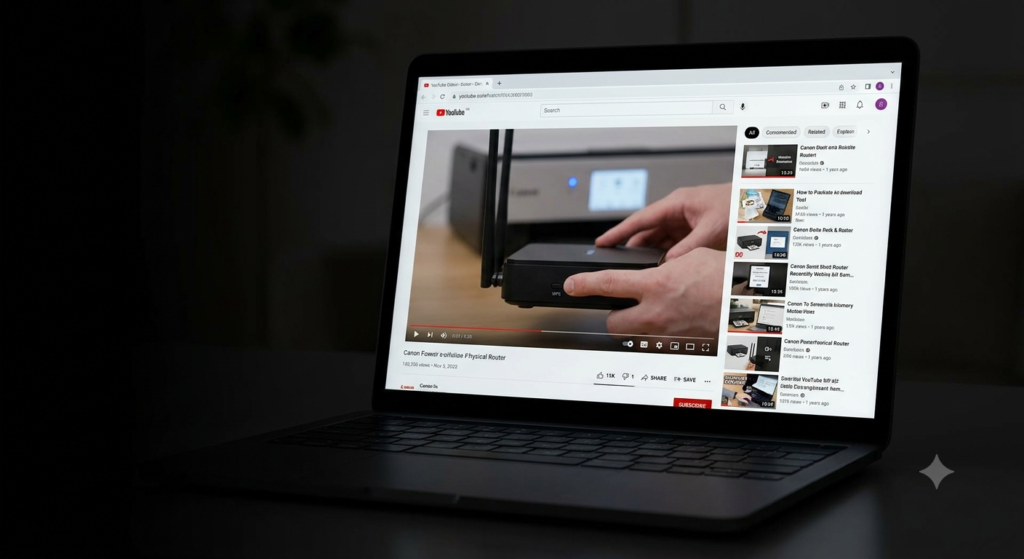
The WPS Button Method
If your Wi-Fi router has a physical WPS (Wi-Fi Protected Setup) button, this is the fastest way to reconnect.
-
On your Canon printer, navigate to the Wi-Fi settings or press and hold the physical Wi-Fi button until the light flashes.
-
Within 2 minutes, press and hold the WPS button on your router for about 5 seconds.
-
The printer and router will negotiate a connection. The printer’s Wi-Fi light will turn solid when successful.
Manual Network Setup via the Printer Screen
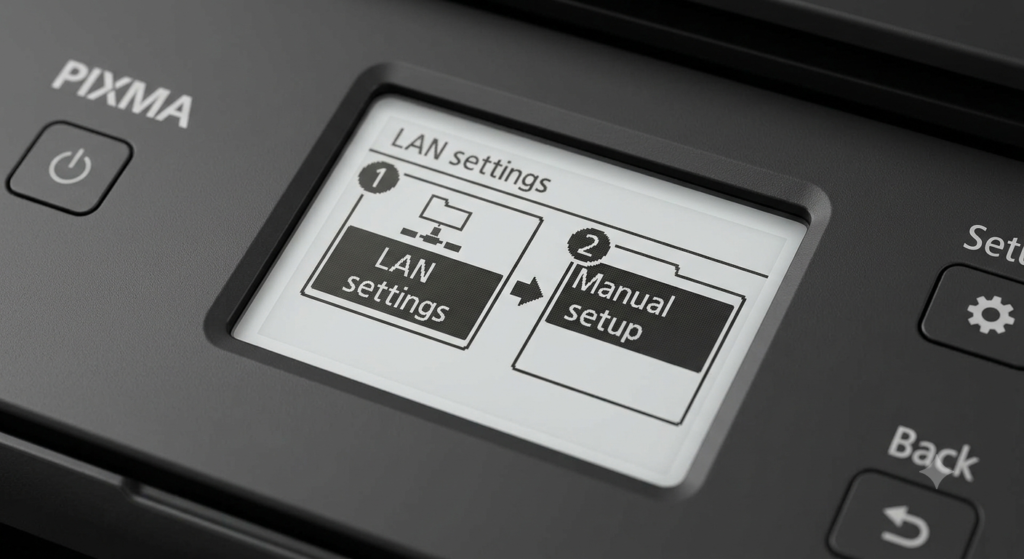
If your printer has an LCD screen (like the MAXIFY or higher-end PIXMA series):
-
Press the Setup (gear icon) button on the printer.
-
Select Wi-Fi Setup or Wireless LAN Setup.
-
Choose Manual Connect.
-
Select your Wi-Fi network from the list and enter your password using the keypad or on-screen keyboard.
5. Assign a Static IP Address (To Stop Frequent Disconnections)
If your printer works today but drops offline tomorrow, you are likely suffering from IP address conflicts. By default, routers use DHCP to hand out temporary IP addresses. When the router restarts, it may give your printer a new IP address, but Windows 11 is still looking for the old one.
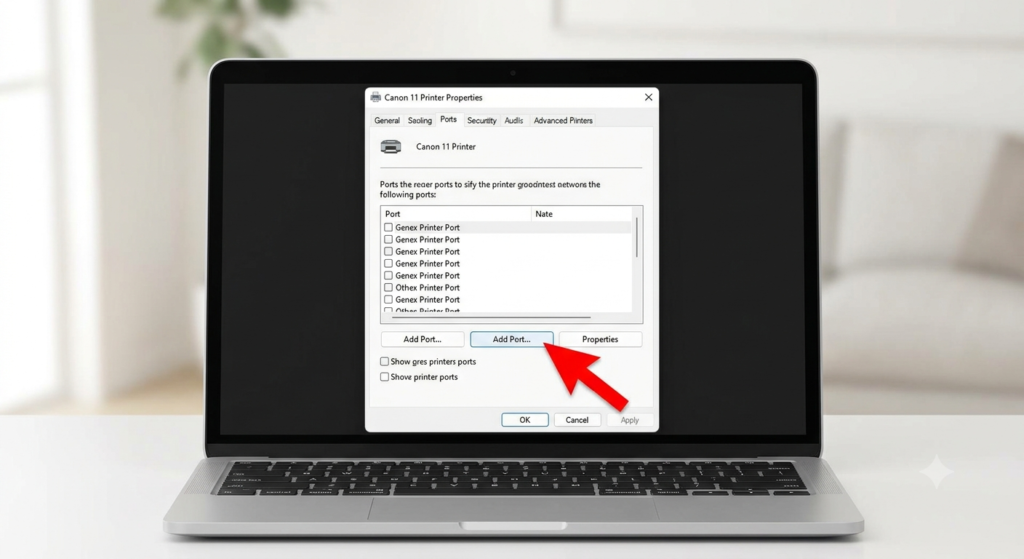
The fix is assigning the printer a Static IP and updating the Windows Port.
Updating the Windows 11 Printer Port:
-
Print a Network Configuration Page from your printer’s physical menu to find its current IPv4 address (e.g., 192.168.1.15).
-
On your Windows 11 PC, go to Settings > Bluetooth & devices > Printers & scanners.
-
Click your Canon printer, then click Printer properties.
-
Navigate to the Ports tab.
-
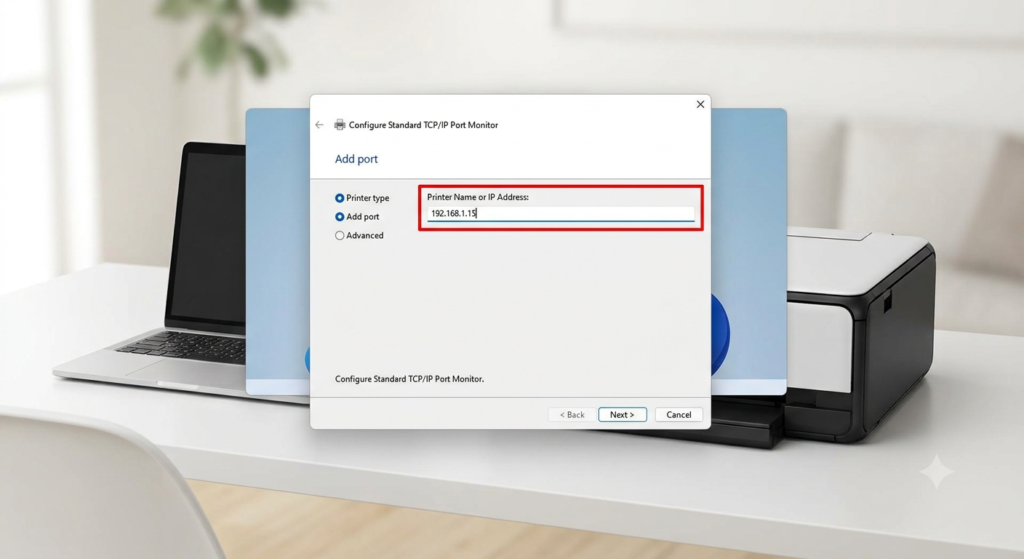
Click Add Port… > select Standard TCP/IP Port > click New Port.
-
Click Next, and in the “Printer Name or IP Address” field, type the IP address from your configuration page.
-
Complete the wizard and ensure this new port is checked in the Ports list.
6. Clean Reinstall the Canon Printer Drivers
If you recently migrated from Windows 10 to Windows 11, the old driver architecture might be corrupted. A clean installation is required.
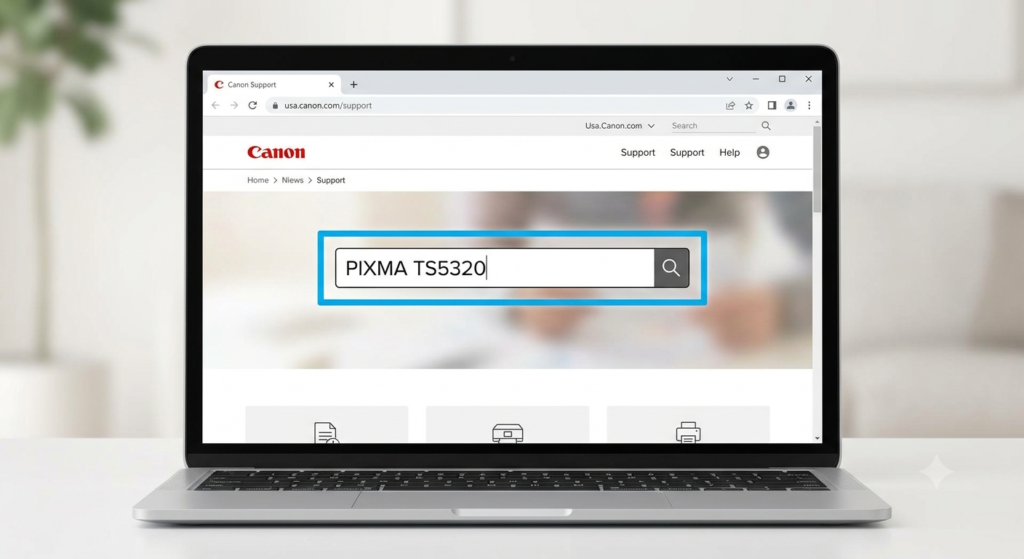
-
Go to Settings > Bluetooth & devices > Printers & scanners, click your Canon printer, and click Remove.
-
Go to the official Canon Support website (usa.canon.com/support) and enter your exact model number.
-
Download the MP Drivers package specifically designated for Windows 11.
-
Run the downloaded installer file. The installer will usually detect the printer on the network automatically during setup.
Frequently Asked Questions (FAQ)
Why does my Canon printer say offline when it is turned on?
A printer being “on” only means it has power. “Offline” means the communication link between the printer and the Windows 11 computer is broken. This is usually caused by the “Use Printer Offline” setting being checked in Windows, a stalled Print Spooler, or the printer’s IP address changing on the network.
Does my PC and Canon printer need to be on the exact same network?
Yes. Your Windows 11 PC and the Canon printer must be connected to the exact same Wi-Fi router. Furthermore, if your router broadcasts a 2.4GHz and a 5GHz network separately, ensure the printer is on the 2.4GHz network, and the PC is on the same network or subnet.
What is the Canon Wi-Fi Connection Assistant?
The Canon Wi-Fi Connection Assistant (formerly known as the IJ Network Tool) is a software utility provided by Canon that helps diagnose and repair network settings. It can be downloaded from the ij.start.canon site and is useful for finding a printer’s IP address if the Windows auto-discovery fails.


0 Comments